 SBX Tools
 Outlook shared inbox control for executive assistants
Two people watching a busy executive's inbox — calendar requests, signed-document threads, board prep, vendor questions, personal forwards. SBX gives every email an owner and a status, so nothing is missed and nothing is touched twice.
Sounds familiar?
When two assistants share an executive's inbox, the inbox itself doesn't tell you who's on what. Forwarding chains, color flags, and "I'll take this one" chat messages don't scale past a handful of emails a day.
"Did you book the dinner with the CFO yet, or is that still mine?"
"I sent the signed contract to legal — but did you also forward the other version?"
"Sarah is on holiday and the board pack came in — who is supposed to assemble it?"
"This personal thing — is it for the executive's eyes only, or can I handle it?"
"It's been two weeks since the venue confirmed — did we ever reply?"
"The executive just asked about Friday's flight — but which thread had the booking?"
How SBX changes the day
One of our clients was using a personal Outlook inbox with shared access — two assistants and the executive all watching the same email address. Transitioning to an external project-management system was cumbersome: converting emails into tasks manually was error-prone, and automating the process produced an overload of irrelevant tasks. They worried about moving from a personal inbox to a group inbox without disrupting the executive's day-to-day flow.
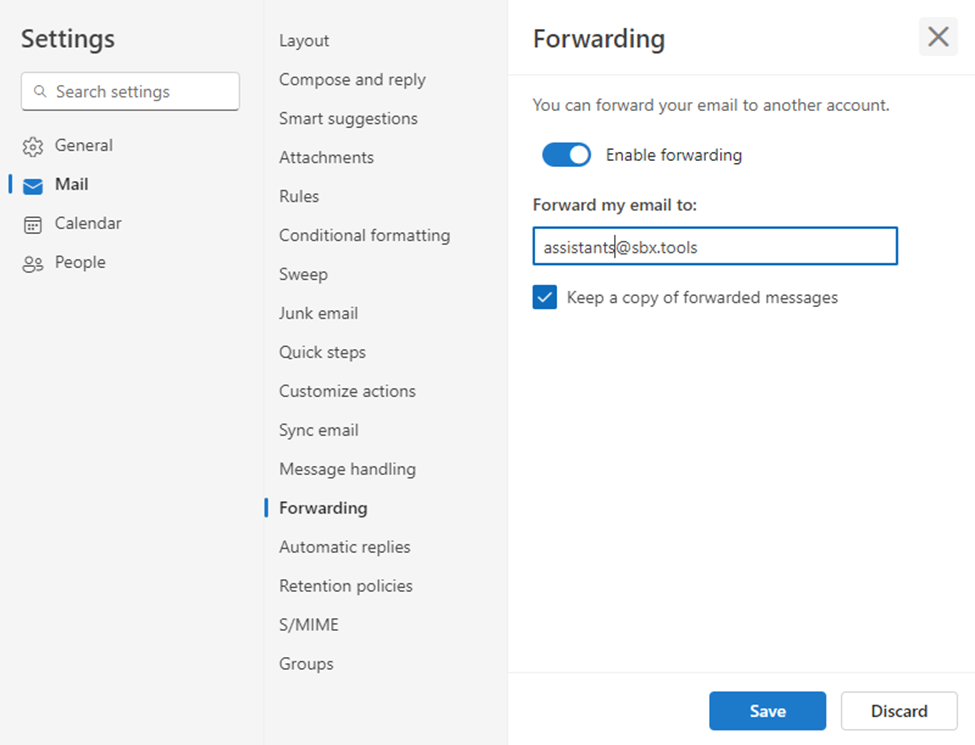
With SBX, the team created a Microsoft 365 Group that includes both assistants and the executive. The executive's inbox is configured to forward incoming email to the Group address, with a copy retained in their own inbox — so the executive's experience does not change. The assistants work the Group inbox in SBX: every email gets assigned to one of them, the status starts at Open, and moves to Closed when handled. The executive can drop in at any time and see exactly what's happening, without asking.
One email, step by step
Below is one common example — a vendor email asking about a signed contract — used to make the flow concrete. The same four steps apply to any email in this inbox: calendar requests, board prep, signed-document follow-ups, personal forwards.
The setup: forwarding into a Group
The executive's Outlook inbox is configured to forward every incoming email to a Microsoft 365 Group inbox where the assistants and the executive are members. A copy is retained in the executive's own inbox — they continue to read mail as before, with no behavioural change required.
The email arrives in the Group, one assistant claims it
A vendor email arrives in the Group inbox. SBX shows status Open. The first assistant with bandwidth clicks Assign to me. The email now has a name on it; the other assistant moves on.
- Visible to both assistants and the executive
- No "FW:" prefix in the subject — forwarding into a Group preserves the original subject
- Internal notes available for asking the executive directly without sending an email
The assistant handles it, then closes
The assistant replies to the vendor on behalf of the executive (signature: "On behalf of [Name]"), or forwards the thread to the executive with a note if it requires direct attention. When the task is done, they click Closed.
- Replies from the Group address — vendor sees the Group's address as the responder
- The
Closedbutton is a status change, not a delete — searchable history remains - Internal note can be
Executive replied directlyif the executive picked it up
Week-in-review
The executive (or either assistant) checks SBX's Insights & Analytics view: what came in this week, what's still Open, who handled the bulk. The executive gets visibility without having to ask either assistant for a status update.
- Status filters:
Open,Closed - Per-assignee view — who is currently working on what
- Email-age indicator for anything sitting in
Openmore than N days
What a typical week looks like in an executive Group inbox with SBX
Monday morning, both assistants check the Group inbox. The executive's weekend forward-stream has accumulated — vendor follow-ups, two calendar requests from board members, a personal thread that needs a direct hand-off, and the usual noise. Each assistant claims a batch — by sender, by topic, or just first-come — and works through it. Mid-week, the executive replies to one email directly from their own inbox (the copy that stayed there); the corresponding email in the Group is marked Closed with an internal note. The executive checks the overview on Friday morning before the weekly 1:1: anything that sat in Open more than two days is reviewed together.
Common questions from executive assistants
Read next
See SBX in your executive's Group inbox
1 month free, no credit card. Install from AppSource and try it on a single Group before rolling it out to the team.
Single tier. €6/user/month annual, €8/user/month monthly. See pricing →